FR French
RU Russian
IT Italian
CN Chinese
ES Spanish
CS Czech
PL Polish
SA Arabic
JP Japanese
DE German
US English (US)
PT Portuguese
Back to homepage

Contact Us

If you still have questions or prefer to get help directly from an agent, please submit a request.
We’ll get back to you as soon as possible.

Please fill out the contact form below and we will reply as soon as possible.

  • Contact Us
English (US)
FR French
RU Russian
IT Italian
CN Chinese
ES Spanish
CS Czech
PL Polish
SA Arabic
JP Japanese
DE German
US English (US)
PT Portuguese
  • Home
  • Manage Your Account & Data
  • Scanner management

Encrypt Case Format

Discover an effective way to lock the case format

Written by Qianqian JIang

Updated at September 24th, 2026

Contact Us

If you still have questions or prefer to get help directly from an agent, please submit a request.
We’ll get back to you as soon as possible.

Please fill out the contact form below and we will reply as soon as possible.

  • Get started
    Catalog Software downloading Unboxing video Related Software Tutorials
  • Learn the Basics
    Software Foundation Calibration Disinfection/Clean/Maintenance
  • Explore Software
    V2 PandaCenter features Scanning software feature V1 PandaCenter feature Advanced Feature
  • Scan Your Case
    Restoration Implant
  • Manage Your Account & Data
    Scanner management Case storage Case preview and sharing
  • Solve a Problem
    Cloud issue Software Issue Scanner issue Data/Case issue
+ More

Table of Contents

When to Use Encrypt?

What is Encrypt?

Encrypt allows you to lock a case file in PTY format. Once encrypted, the case can only be unlocked and converted back to STL or PLY by the user who encrypted it.

This function is mainly designed for dental laboratories that want to control access to clinic case data and prevent unauthorized users from directly using or exporting the original scan data.

When to Use Encrypt?

The Encrypt function can be useful in the following situations:

  • Control access to case data: Labs can prevent clinics or other users from directly accessing the original STL/PLY files.
  • Protect case ownership: The laboratory can keep control of the case data during the design and production process.
  • Secure data sharing: When a case needs to be transferred to another user, the encrypted PTY file can be shared without exposing the original STL/PLY data.
  • Manage the clinic–lab workflow: Clinics can send scan cases to the lab while the lab retains control over when the data can be converted into a standard format.

How to Use Encrypt?

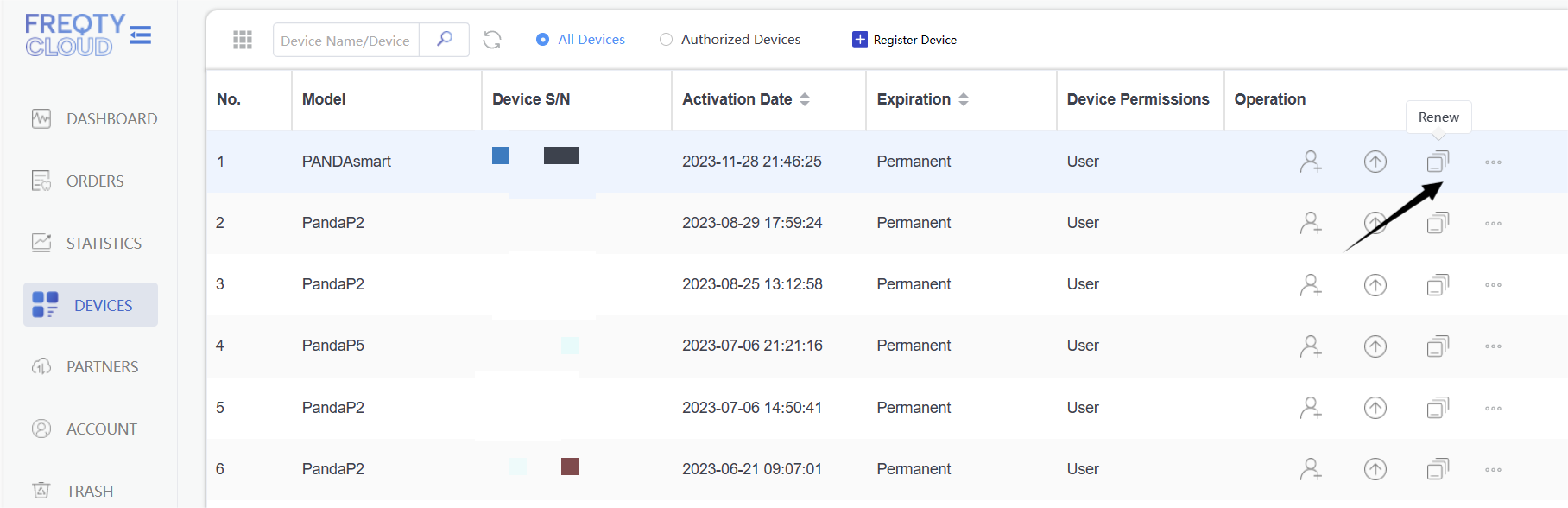
  1. Login the cloud,find the devices,select the scanner which you want to encrypt.click Renew.
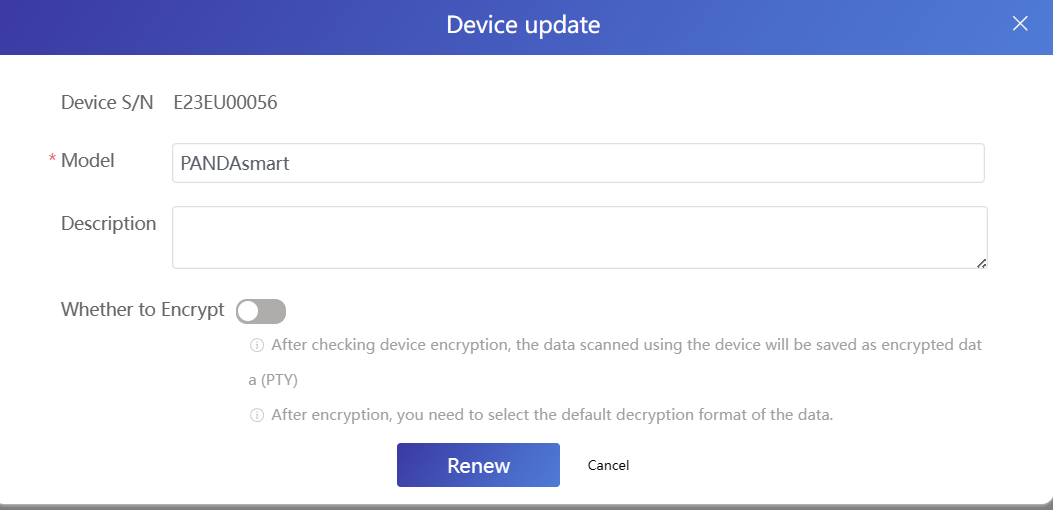
  2. turn on the encrypt button.
revive refresh encrypt lock

Was this article helpful?

Yes
No
Give feedback about this article

Related Articles

  • Authorise
  • Safe & Easy Data Migration: Transfer All Your Scans to a New PC | Backup&Restore

Copyright 2026 – Panda Scanner.

Knowledge Base Software by Helpjuice

Expand